Aspen 2026.2 Release Notes
Enhancements to Aspen SIS
Welcome to Aspen 2026.2! This release includes several improvements and new features designed to deliver a more efficient, streamlined user experience.

All Users (except Students and Families)
Interactive Analytics feature updates
Release 2026.1 introduced the Interactive Analytics feature, which let users create and view data sets with drill-down capabilities, using real-time information in Aspen. Aspen 2026.2 builds on this foundation, offering richer visualization, broader data views, and accessibility improvements for administrators and data managers.
This feature now includes seven additional chart options, combined district-level data views with custom tables, automatic consolidation of small data segments for clearer reporting, and a high-contrast accessibility mode designed to support ADA compliance. These enhancements give district administrators and data managers more flexible ways to review, visualize, and share data across their organization.
|
Note: The new Analytics Chart colors preference lets users choose a color palette for Interactive Analytic charts:
In Aspen desktop, from any view, click your user name on the settings bar and then select Set Preferences > General. |
Shown: Interactive Analytics data set displaying conduct Incident Primary code, Incident Location, and Grade Level

See "Use Interactive Analytics" in online Help for more information.
Students and Families
Aspen Go: Calendar added to Student portal
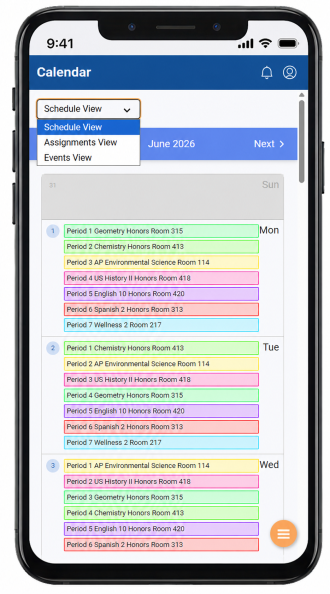
A Calendar menu option now appears in the Student portal, giving students an at-a-glance view of their classes. In Schedule View, students can see their schedule for the selected month. In Assignments View, they can see assignments for a selected course or all courses. In Events View, they can see district, school, and extracurricular events.
Shown: Aspen Go Calendar screen (Schedule View)
See "Checking the Calendar" in online Help for more information.
New Student (Online) Registration: School choice supported
Families can now choose and rank their preferred schools during New Student (Online) Registration, if their district uses this Aspen feature. Depending on the district’s setup, families may be able to select one or more schools and put them in order of preference.
The focus of this release is to make it easier for families to submit school choice requests in a mobile-friendly experience. Districts continue to make placement and enrollment decisions manually.
System, District, and School Administrators
New Analytics Dashboard
Aspen 2026.2 introduces the Analytics Dashboard, a new feature that gives users a more visual way to review key data through charts built from analytic definitions. Based on each user’s permissions and available data, the dashboard provides targeted views that help staff review information more efficiently. It is available in the District (Root Organization) view, and in the Intermediate Organization and School views in environments that use multiple organizations.
This enhancement expands Aspen’s analytics experience beyond list-level Interactive Analytics by adding a dedicated workspace for viewing and organizing analytic charts. (District [Root Organization] view, Analytics > Analytic Definitions)
| Note: Analytic definitions are now accessible from Analytics > Analytic Definitions in the District (Root Organization) view. Previously, they appeared at Tools > Analytic Definitions. |
See "Use the Analytics Dashboard" in online Help for more information.
New Student (Online) Registration: School choice feature
Customers who use Aspen's New Student (Online) Registration can now use the school choice feature, which lets families select and rank their preferred schools during registration. Based on district configuration, families can enter from 0 to N prioritized school choices. This release also expands school choice support by letting districts present school and program information through updated templates, display school choice content in Aspen Go, and use enhanced embedded layouts with improved width, row, and column formatting. Configuration is required. Contact Technical Support for details.
Changes to Aspen Go Staff portal
Aspen Go's Staff portal provides an intuitive workspace where teachers can complete their most common tasks in just a few clicks. In this release, teachers can do the following:
-
Take class attendance, using a list or seating chart view.
-
Post class attendance (in accordance with the Post mode set in the Class Attendance preferences).
-
View the class roster.
-
Enter assignment scores.
See the Teachers section for full details.
Changes to Aspen Go Student portal
The new Calendar menu option lets students see their schedule. Then, they can tap one of the following:
-
Schedule View: Displays their schedule for the selected month. Classes display in accordance with the student's bell schedule for each day.
-
Assignments View: Displays assignments for the selected course, or all courses.
-
Events View: Displays district and school events (District [Root Organization] view, District [Root Organization] > Events, or School view, School > Events), as well as teacher appointments and extracurricular events.
See "Checking the Calendar" in online Help for more information.
Aspen Go: Single-phase workflows supported
Customers can initiate and complete a single-phase workflow in Aspen Go. The workflow appears on the Forms menu, where users can initiate, view, delete, and submit it.
Aspen Go: Custom template for Demographics screen (Family portal)
Districts can now configure the Aspen Go Demographics screen through the Go.family.demographics template. This allows administrators to determine which student demographic fields to display in a flexible, template-driven layout that includes sections, columns, and rows.
| Note: Customers who had previously deployed Go.family.demographics will need to redeploy it, since the schema for columns and rows has changed. |
Aspen Go: Custom template for My Info screen (Student portal)
A new dynamic template, Go.student.demographics, adds a role-based separation for dynamic demographics templates between the Family and Student portals. This new template lets administrators determine the demographic fields that appear on the My Info screen in the Student portal.
Aspen Go: Field masking
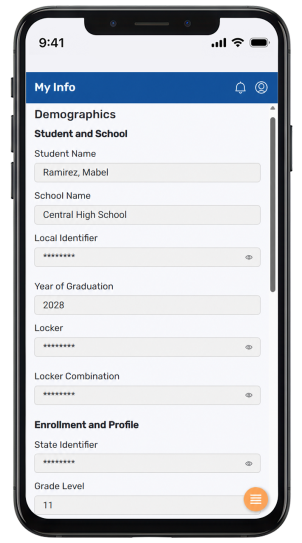
The templates Go.family.demographics and Go.student.demographics allow for field masking, which protects sensitive information by displaying selected fields (such as phone numbers, locker numbers, and locker codes) as asterisks by default instead of showing the full value. Users can click the Show/Hide icon  to reveal the value, when needed. This helps districts reduce accidental exposure of private information in shared or public viewing environments.
Shown: Masked fields on My Info screen (Student portal)
|
Note: Districts (root organizations) can track locker codes through the School Locker system table. This table stores the locker number, combination code, and comment for lockers that can be assigned to student records. To display the locker combination on the Student Details page in the School view (Aspen desktop), add the following to the student.std.list.detail template: <property id="relStdLkrOid.lkrComboCode" label-short="false" /> |
Teachers
Enhancements to Aspen Go
Robust new features make common administrative tasks quicker and easier for teachers. These features are described below.
Home Page
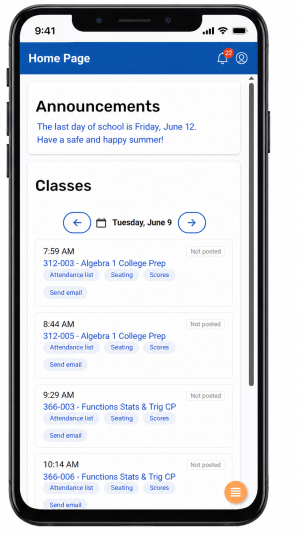
The Home Page keeps teachers up-to-date with the latest school and district notifications, and provides quick access to classes. Class sections appear in the order they meet that day, with the next class shown at the top of the screen. For added convenience, every class has a 'Send email' link, so teachers can quickly compose and send a message to the group. By tapping other quick links, teachers can take class attendance, view a class roster, and enter assignment scores.
Shown: Aspen Go Home Page in the Staff view
Attendance
It's easy to take class attendance – just tap 'Attendance list' or Seating on the Home Page to take attendance by last name or seating chart (if one has been created in Aspen desktop). Or, tap the new Attendance menu option.
Shown: Attendance screen in the Staff view
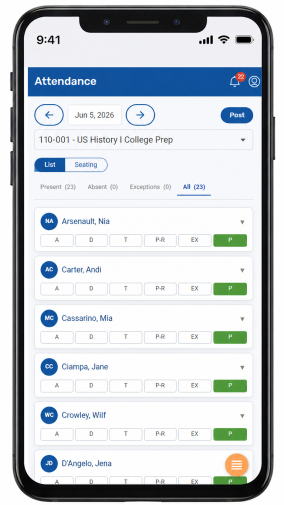
Then, tap an attendance code; if an absence requires additional documentation, tap the student's name and enter comments. Tap Post to complete the process. On the Home Page, the Posted column indicates attendance for the class has been posted.
| Note: The initials avatar can display student photos (instead of initials) if an administrator uploads them in Aspen desktop. |
Roster
Tap a class name on the Home Page, or tap Roster from the menu, to view info for the students in a class section. For example, the screen displays a student's ID, YOG, enrollment status, email address, and alerts (if any). To view a different class section, just tap the drop-down at the top of the screen.
Grades
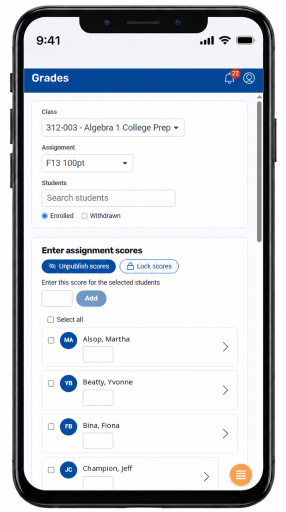
Tap Scores on the Home Page, or tap Grades from the menu, to enter assignment scores. The screen displays the assignment name and total available points. Teachers can enter scores individually or assign the same score to selected students or the entire class, then adjust any scores that differ. After entering scores, tap 'Lock scores' to make them read-only and prevent inadvertent changes. To make assignment scores visible in the Student and Family portals, tap 'Publish scores'.
Shown: Grades screen in the Staff view
See "Using Aspen Go in the Staff portal" in online Help for more information.
Special Education Professionals
Aspen Go: Expanded parent review and electronic signature support for IEP workflows (Massachusetts only)
Aspen has expanded the electronic signature workflow for Special Education documents in Aspen Go. Districts can now support more complex parent response scenarios, including multiple parent signatures and additional parent-facing workflow options for IEP review and response.
This update also supports related consent and document-handling improvements, including placement consent processing and refinements to how parent response forms and signed outputs are displayed and managed in the workflow.
These enhancements continue the Special Education electronic signature work introduced in Aspen 2026.1 and further streamline how schools send documents to parents, collect responses and signatures, and return the workflow to staff for review and next steps.
| Note: This special education feature will be deployed in a separate bundle. |